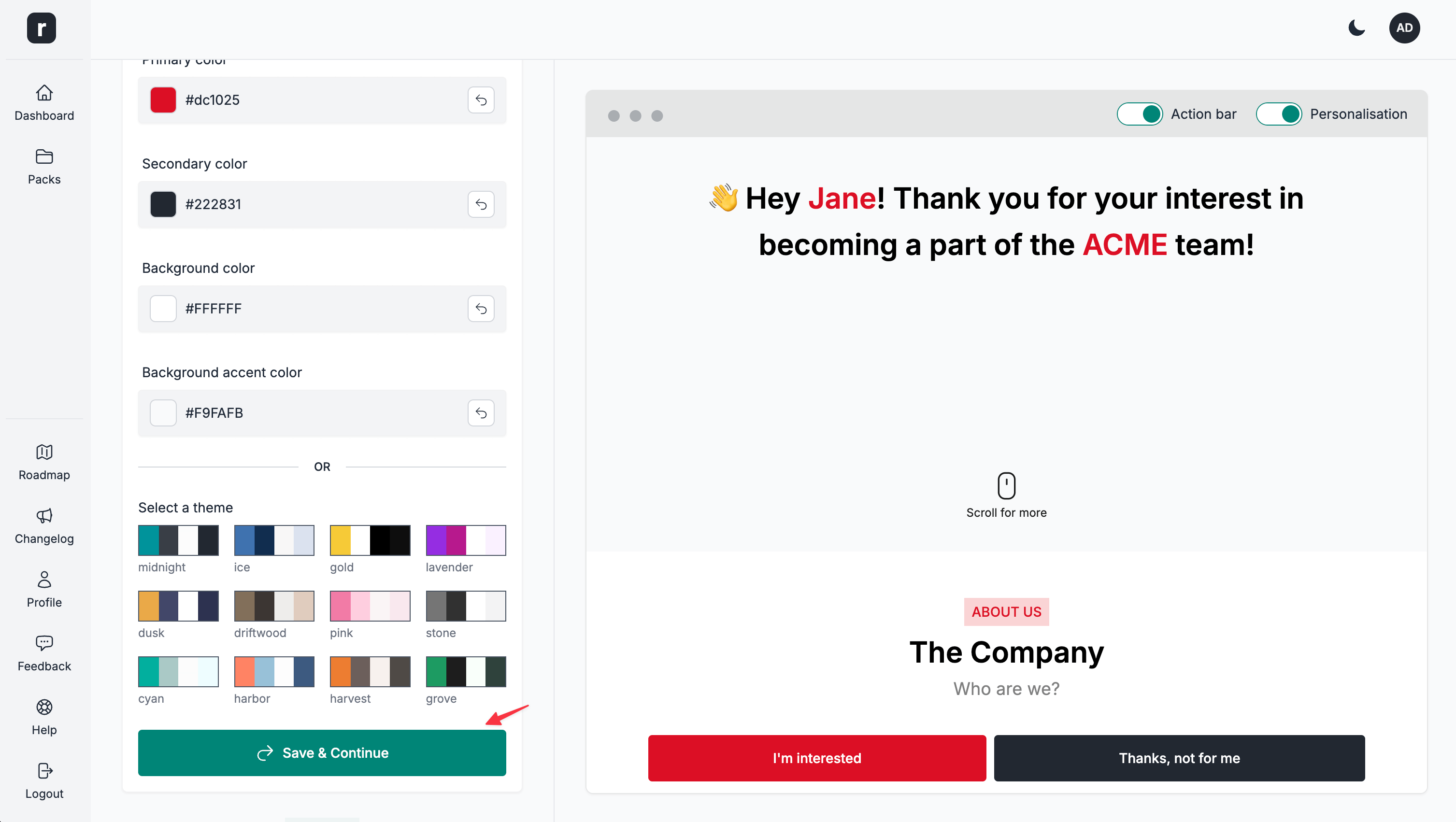
Apply a theme or custom brand colours
⚠️ To best visualise the theme changes, make sure you already have some content in place. For a quick starter template have a look at the Use the starter content template Help Article.
Apply one of the twelve pre-built themes
-
Open the candidate pack editor page
-
Scroll down to the
Themesection underBasics & Theme
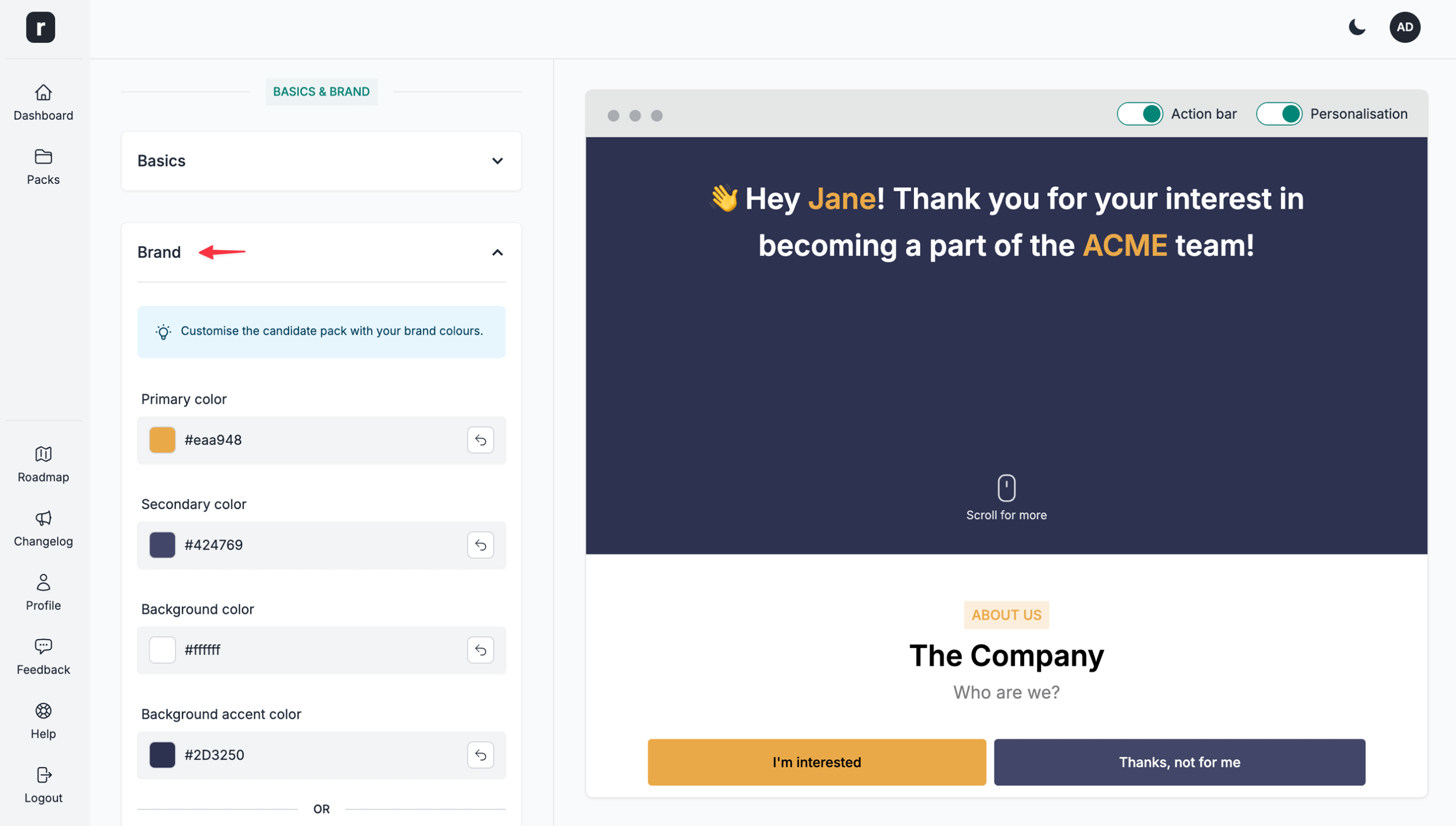
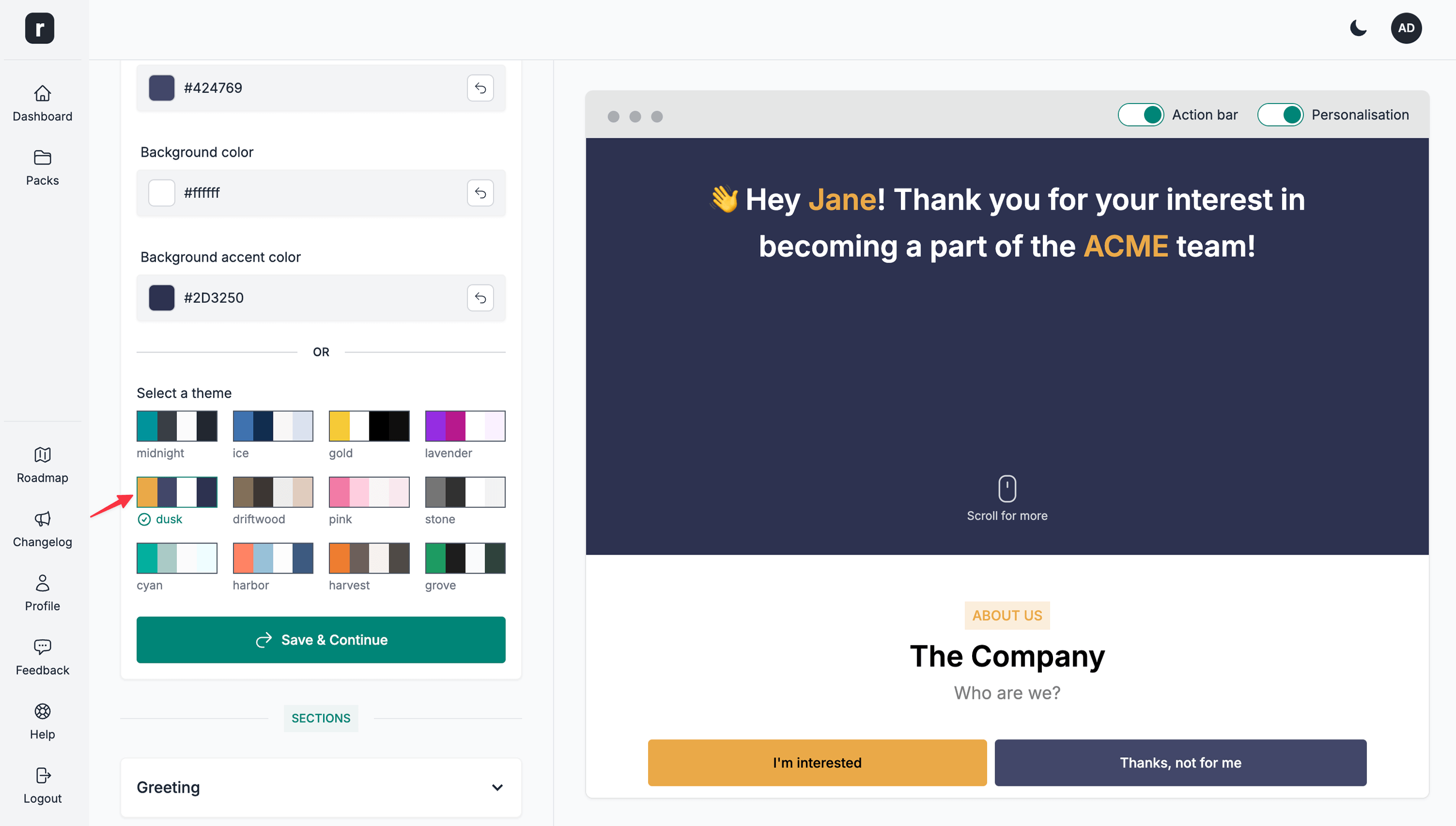
- Select one of the pre-built themes
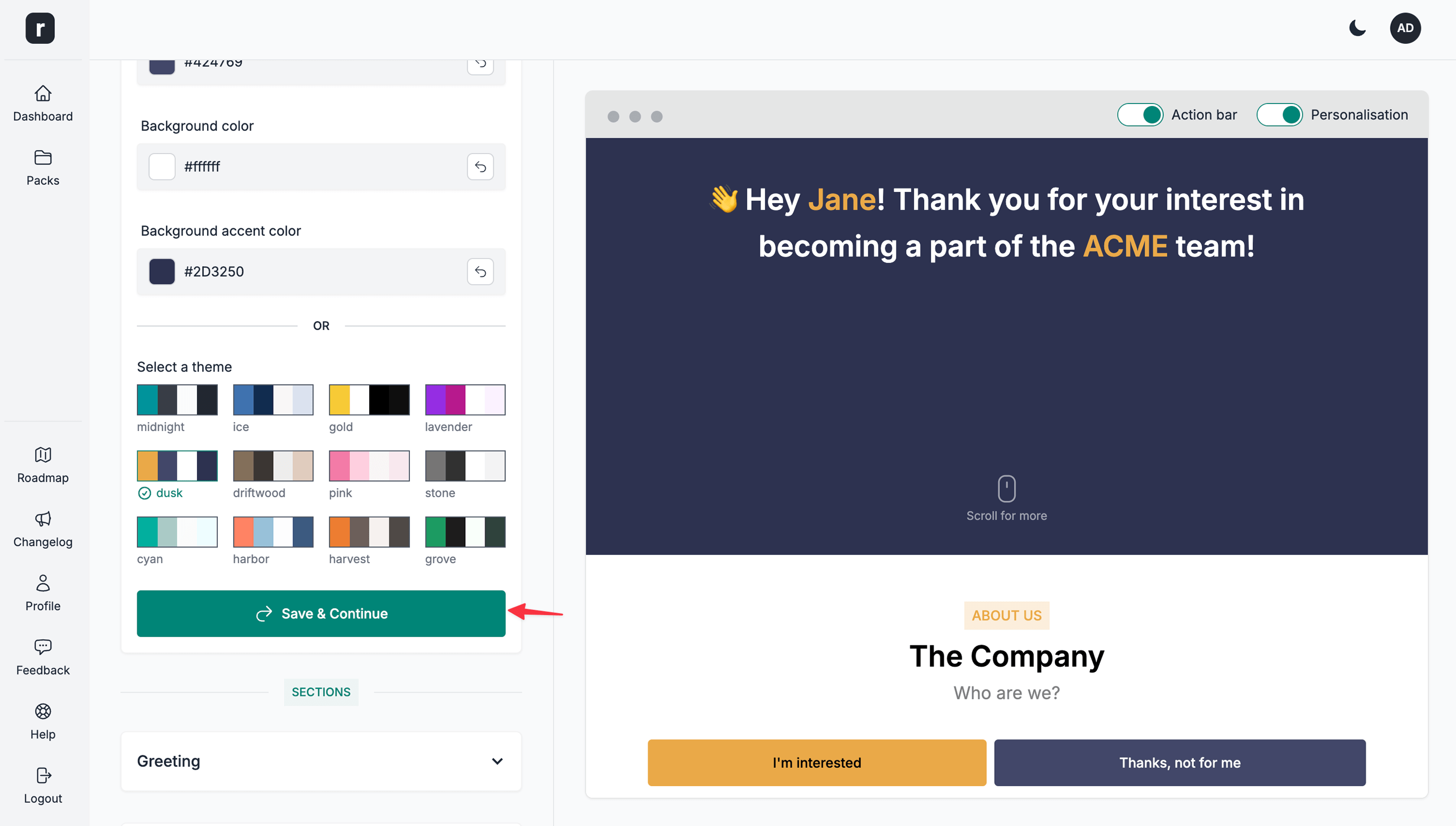
- Click the
Save & Continuebutton to save your changes
Use custom brand colours
Custom brand colours are available only when the active team has the required feature access. If you belong to multiple teams, access is determined by the entitlements of the active team.
-
Open the candidate pack editor page
-
Scroll down to the
Themesection underBasics & Theme
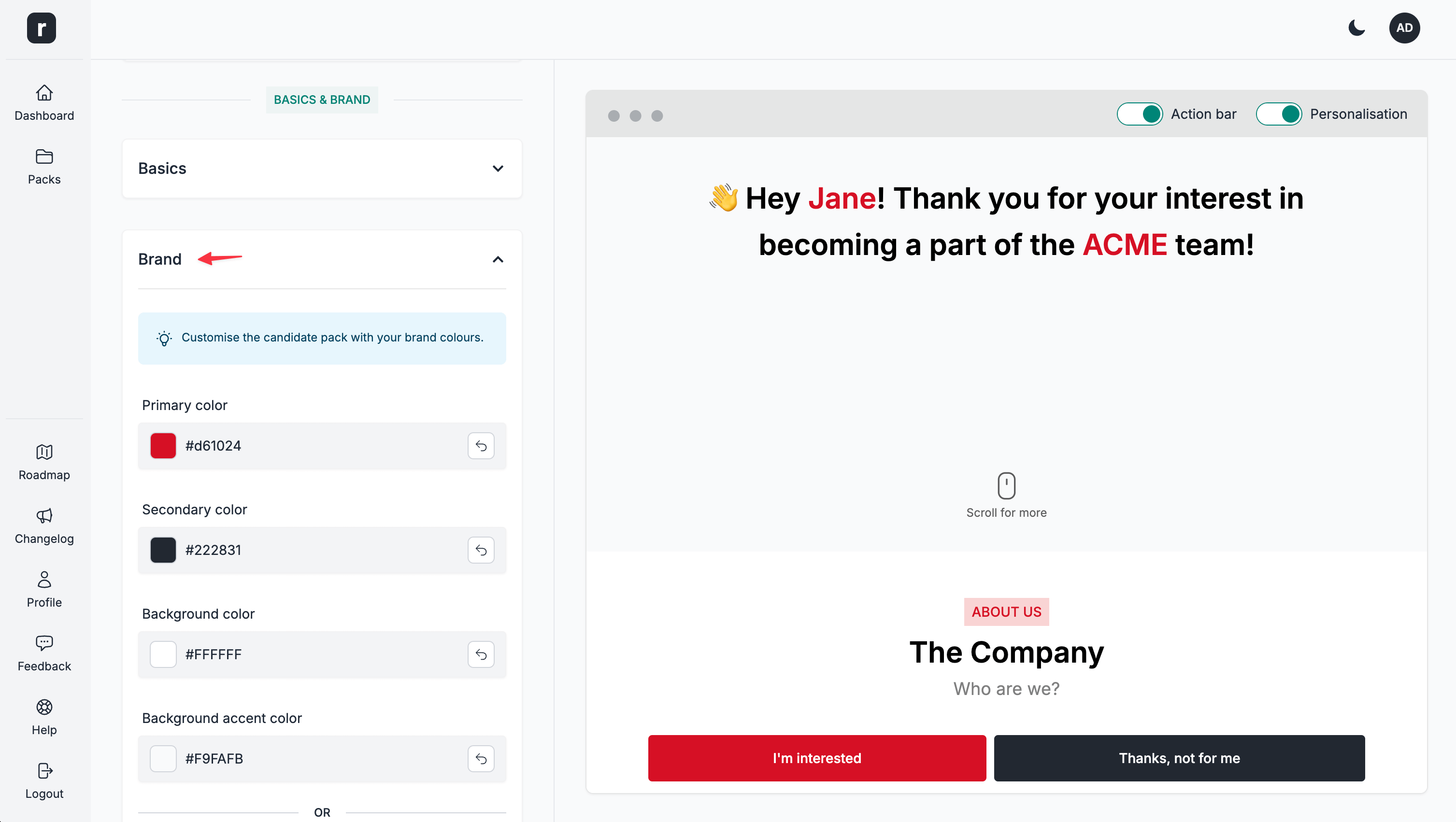
- Open the
Create custom themepanel to reveal the colour options, then click any of the 4 options to open the colour picker:- Primary colour
- Secondary colour
- Background colour
- Background accent colour
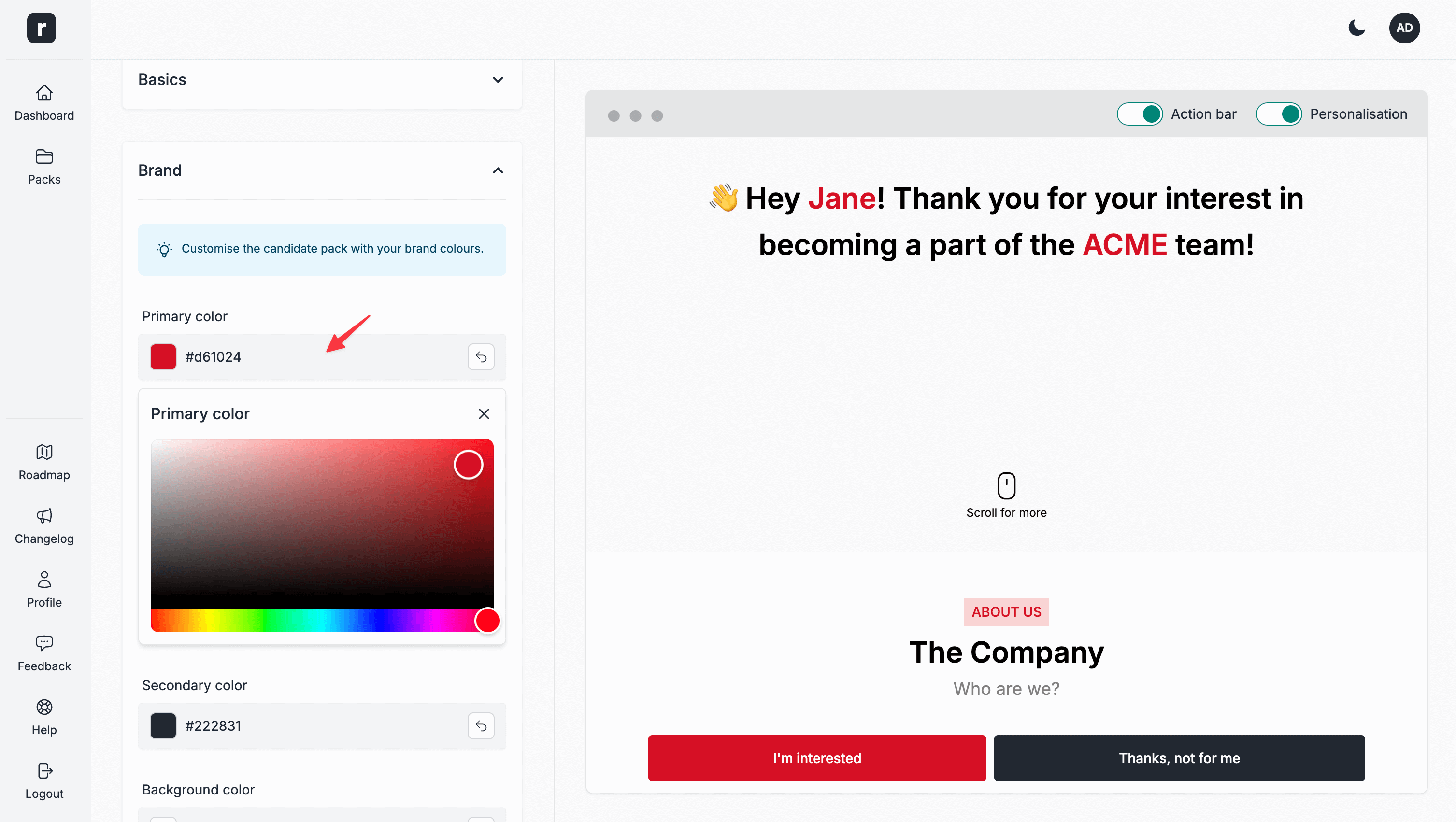
- Click the
Save & Continuebutton to save your changes